How to save tracks from Bandcamp, YouTube and Discogs while you browse
You dig on your laptop and lose tracks in open tabs and bookmarks.
Short answer
Install the Diggit Chrome extension. On any Bandcamp, YouTube, SoundCloud or Discogs page, click the Diggit icon: the track is identified and saved to the crate you choose. Your laptop digs show up on your phone the same second.
Why this is harder than it should be
Laptop digging has its own mess: 25 tabs you are afraid to close, browser bookmarks named after URLs, a Bandcamp wishlist here and a Discogs wantlist there.
None of it connects to what you found on your phone during the week, so the picture of “what I discovered this month” never exists.
How to do it with Diggit
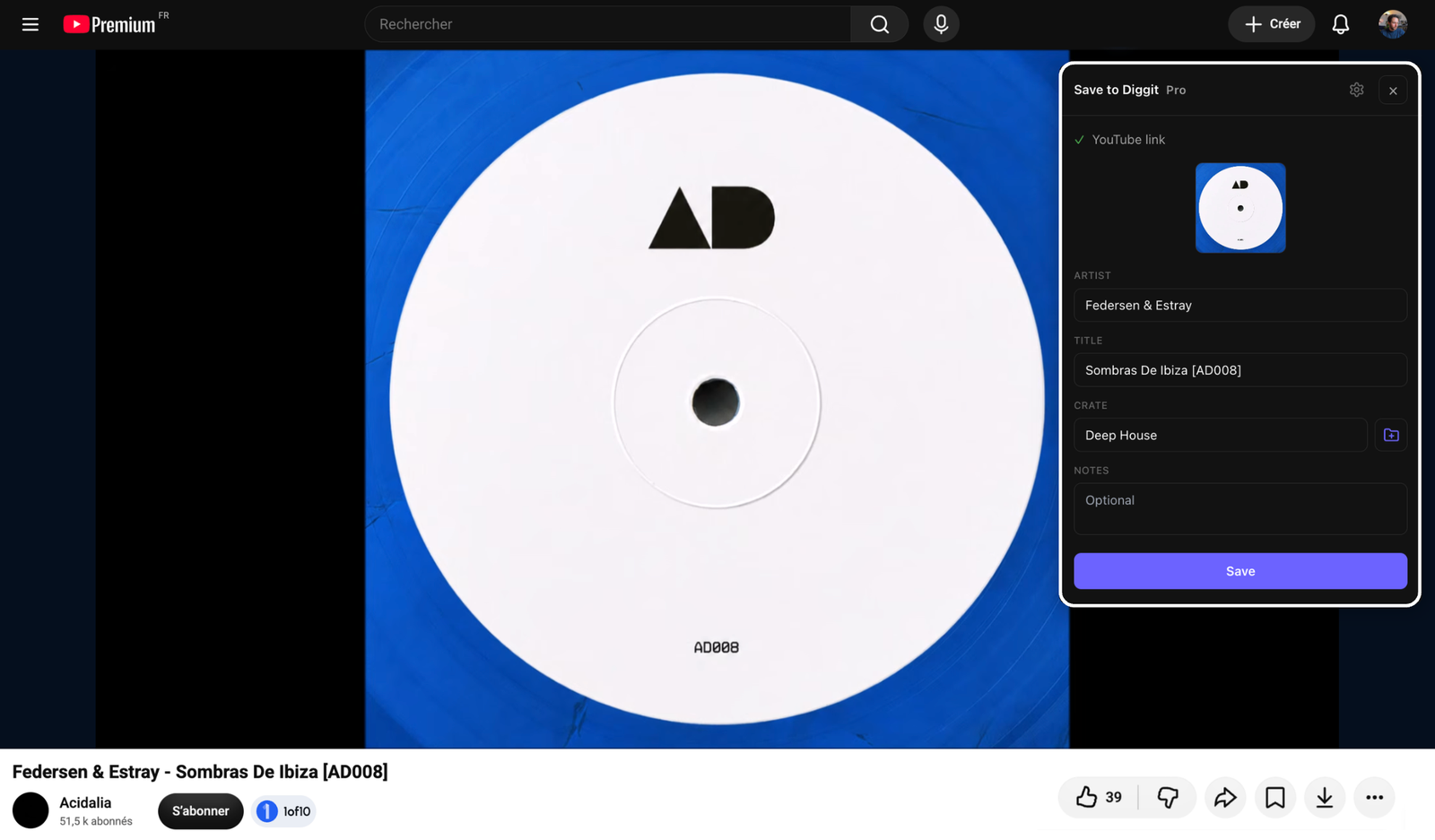
- 1
Install the extension
Add Diggit from the Chrome Web Store and log in with your Diggit account. The extension is part of Diggit Pro.
- 2
Click while you browse
On a track page (Bandcamp, YouTube, SoundCloud, Discogs, a blog…), click the Diggit icon. The track is identified and you pick a crate.
- 3
Close the tabs
The track is saved with a preview and buy links. Open the web app or your phone later to listen and decide.
Other ways to do it
- No extension? Paste the page link in the bar at diggitmusic.online.
Tips from diggers
- Save first, judge later. The point of the extension is to be able to close the tab without thinking.
Frequently asked questions
Which sites does the extension work on?
Any page with a track: Bandcamp, YouTube, SoundCloud, Discogs, Spotify, blogs and shop pages. Diggit reads the page to identify the track.
Is it available for Firefox or Safari?
Chrome (and Chromium browsers such as Brave, Arc and Edge) today. On other browsers, use the paste bar at diggitmusic.online.